

















There's always a bit of excitement when unboxing a new robot vacuum. You charge it up, place it on the dock, and watch it make its first trip around your home. But before your robot can truly become a smart cleaning assistant, there's one important step: connecting it to Wi-Fi.
A Wi-Fi connection unlocks the features that make robot vacuums so convenient. Instead of pressing a button every time you want to clean, you can schedule jobs, create room-specific cleaning plans, draw no-go zones, and even start cleaning while you're away from home.
Modern smart vacuums like the MOVA lineup are designed to integrate seamlessly into connected homes, giving users greater control, better cleaning efficiency, and a more personalized experience through their mobile app.
If you're having trouble getting your robot vacuum online, don't worry. This guide walks you through the entire process and explains how to fix the most common connection issues.
Do Robot Vacuums Really Need Wi-Fi?
Most robot vacuums can still clean without Wi-Fi. You can usually start cleaning using a physical button on the device or a basic remote control.
However, using a robot vacuum without Wi-Fi is a bit like driving a luxury car in first gear. The machine works, but you're missing many of the features that make it truly useful.
Connecting your device to the home network transforms an ordinary appliance into an automated cleaning system. Here is the actual value proposition you gain once online:
- Complete App Control: Start, pause, or send your vacuum back to its charging base from anywhere, whether you are relaxing on the couch or sitting at your office desk.
- Real-Time Mapping: Watch your vacuum build a precise visual layout of your home, allowing you to target specific rooms or avoid delicate areas entirely.
- Custom Scheduling: Set distinct routines, such as vacuuming the kitchen every morning at 9:00 AM or running a quiet mopping cycle late at night.
- Voice Assistant Integration: Sync your unit with Amazon Alexa or Google Assistant to initiate cleaning sessions using quick voice commands.
- Essential Firmware Updates: Manufacturers regularly roll out over-the-air software updates that improve navigation efficiency, fix bugs, and optimize battery life.
Pre-Setup Checklist: Things to Prepare
Before beginning the connection process, take a few minutes to confirm that everything is ready.
Many connection failures happen because of small setup issues rather than problems with the vacuum itself.
1. Confirm You're Using a 2.4 GHz Wi-Fi Network
This is the most common reason robot vacuums fail to connect.
Most robot vacuums currently support 2.4 GHz Wi-Fi only.
While 5 GHz networks offer faster speeds, robot vacuums don't need high bandwidth. Instead, they benefit from the stronger range and better wall penetration provided by 2.4 GHz signals.
Why manufacturers prefer 2.4 GHz:
- Better coverage across larger homes
- More reliable connections through walls and floors
- Lower power consumption
- Improved device stability
If you're unsure which network you're using, check your router settings or internet provider's app.
2. Keep Your Wi-Fi Name Simple
Some robot vacuum apps struggle with unusual network names.
To avoid setup issues:
Recommended:
- HomeWiFi
- SmithFamily
- MyNetwork24
Avoid:
- Home@2026!!!
- WiFi#1$
- Network
Special characters, emojis, and unusual symbols can sometimes interfere with the pairing process.
3. Turn On Bluetooth
Many newer robot vacuums use Bluetooth during the initial pairing process.
Before opening the robot vacuum app:
- Enable Bluetooth on your smartphone
- Keep your phone close to the robot vacuum
This helps the app locate and identify the device more quickly.
4. Disable VPN Services Temporarily
VPNs occasionally interfere with device discovery during setup.
If you use:
- NordVPN
- ExpressVPN
- Surfshark
- Built-in VPN services
Temporarily disconnect before pairing.
Once setup is complete, you can usually turn your VPN back on.
5. Disable Apple Private Relay (iPhone Users)
Apple's Private Relay feature can sometimes prevent smart home devices from communicating correctly during setup.
To temporarily disable it:
1. Open Settings
2. Tap your Apple ID
3. Select iCloud
4. Tap Private Relay
5. Turn it off during setup
After your robot vacuum is connected successfully, you can re-enable the feature if desired.
6. Place the Robot Near the Router
For the first connection, position the robot vacuum relatively close to your Wi-Fi router.
A strong signal reduces pairing failures and speeds up setup.
Once connected, the robot can be moved back to its normal charging station location.
7. Install the Latest Version of the App
Before starting:
- Download the official manufacturer app
- Update it to the newest version
- Create or sign in to your account
Outdated apps can occasionally cause pairing problems.
Step-by-Step: How to Connect Your Mova Robot Vacuum
Connecting your MOVA robot vacuum is usually a quick process that takes just a few minutes.
1. Download the MOVA App from the App Store or Google Play.
2. Create or sign in to your MOVA account.
3. Turn on Bluetooth and place the robot near your phone.
4. Open the app and tap Add Device.
5. Select your robot vacuum model and follow the on-screen instructions.
6. Connect the robot to your 2.4 GHz Wi-Fi network and enter your Wi-Fi password.
7. Wait for the setup process to finish and confirm the connection.
Helpful Tip: Pay attention to the robot's voice prompts during setup. Messages such as "Waiting for network configuration" or "Wi-Fi connected successfully" can help you identify whether the pairing process is progressing correctly.
Troubleshooting Common Connection Issues
- Connection Failures: If the robot cannot connect to Wi-Fi, try resetting its network settings. Most models allow a Wi-Fi reset by pressing and holding specific buttons for several seconds until you hear a confirmation prompt. Refer to your user manual for the exact button combination.
- Signal Dead Zones: Weak Wi-Fi coverage can cause disconnections or delayed commands. Place the charging dock in an open area with a strong wireless signal, away from large metal objects, thick walls, or enclosed spaces.
- Software Status: Outdated software can sometimes affect connectivity. Make sure you're using the latest version of the MOVA app and check for available firmware updates within the app settings to keep your robot running smoothly.
The Best Smart Robot Vacuums with Easy Wi-Fi Setup
Today's premium robot vacuums make Wi-Fi setup faster and more reliable than ever, allowing users to access advanced features such as room mapping, cleaning schedules, remote control, and automatic software updates within minutes.
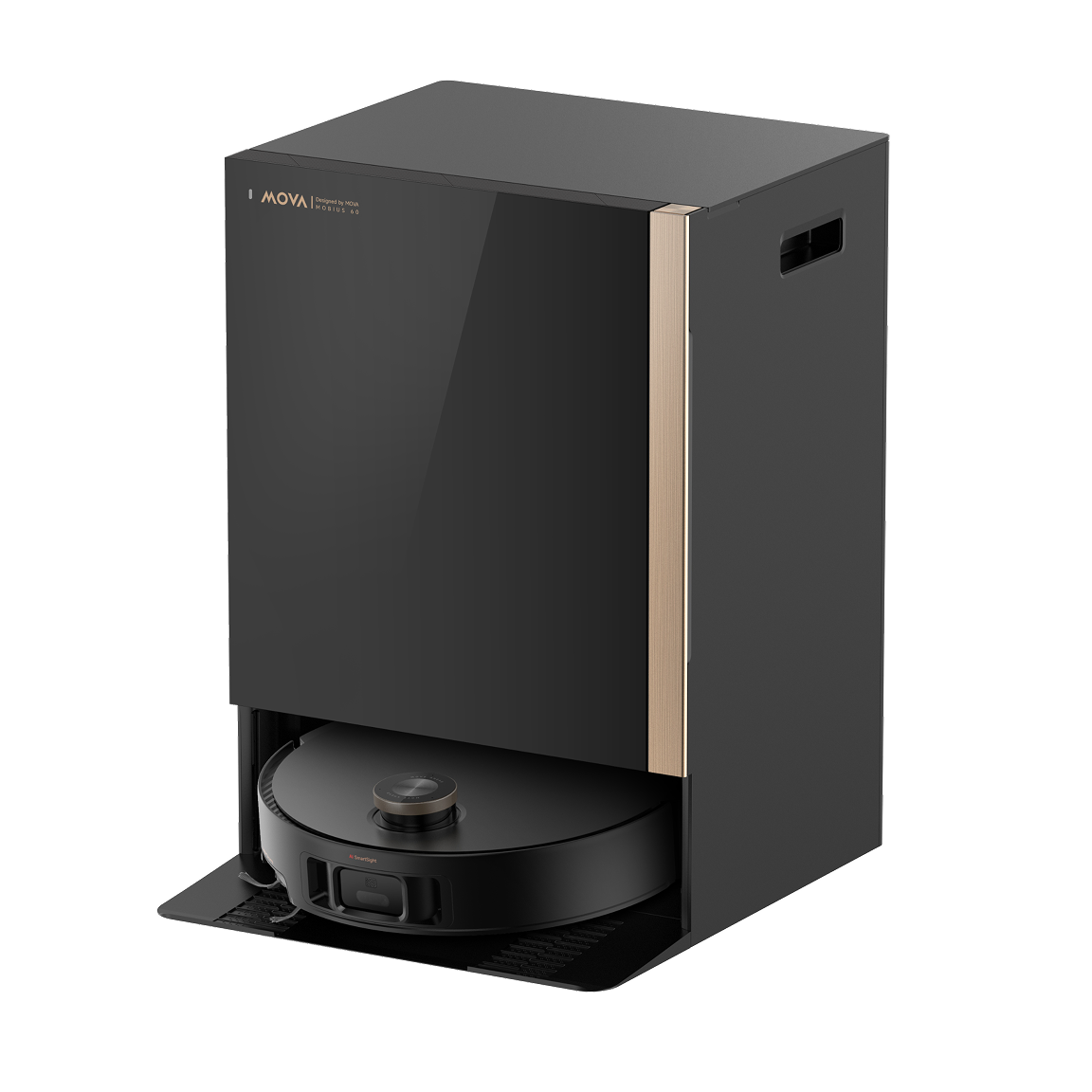
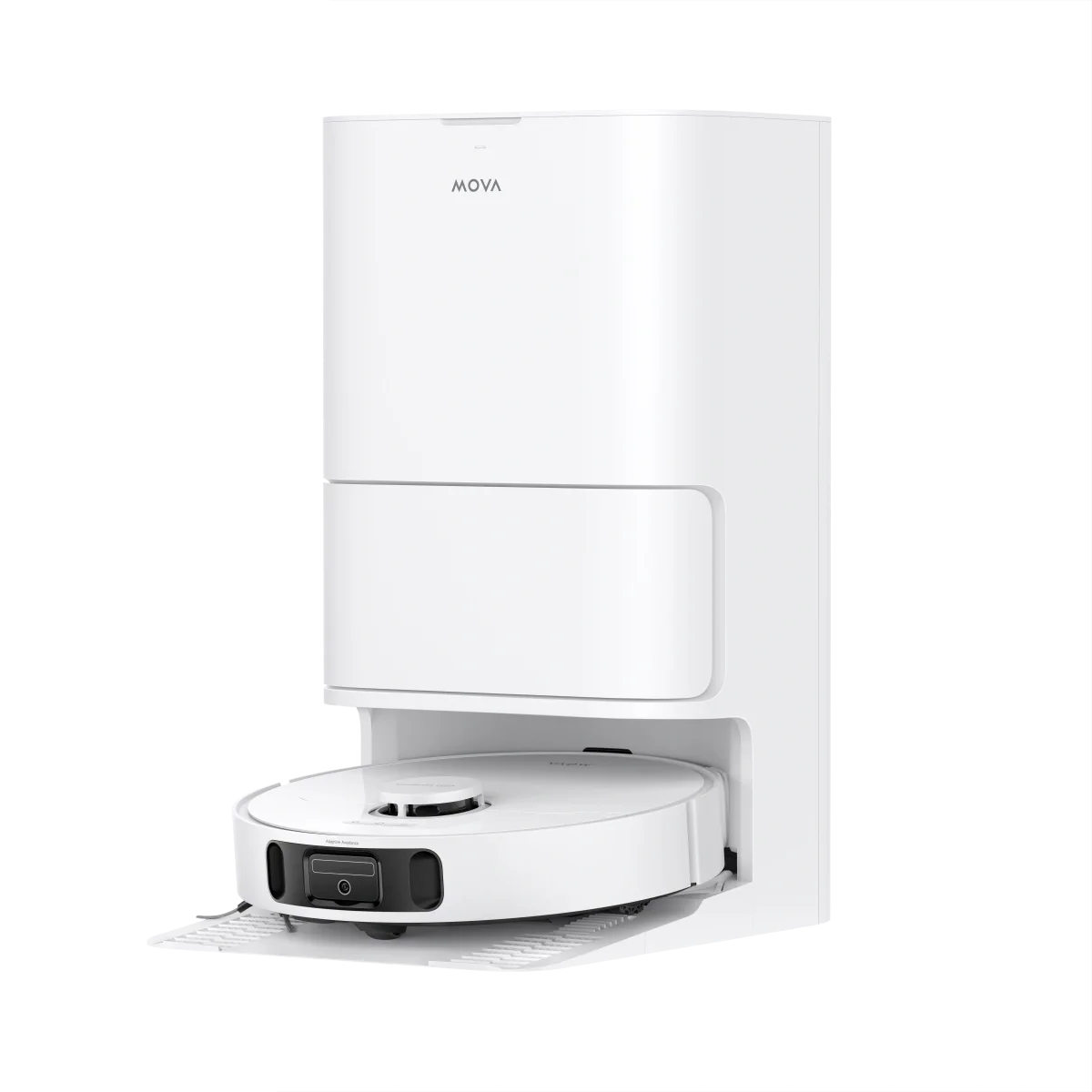
MOVA P10 Pro Ultra
The MOVA P10 Pro Ultra is an excellent choice for homeowners who want powerful cleaning performance combined with intelligent app control. With 13,000Pa suction, advanced home mapping, and up to 75 days of hands-free maintenance, it delivers a highly automated cleaning experience. Features such as remote video monitoring and customizable cleaning routines make it ideal for busy families and pet owners.
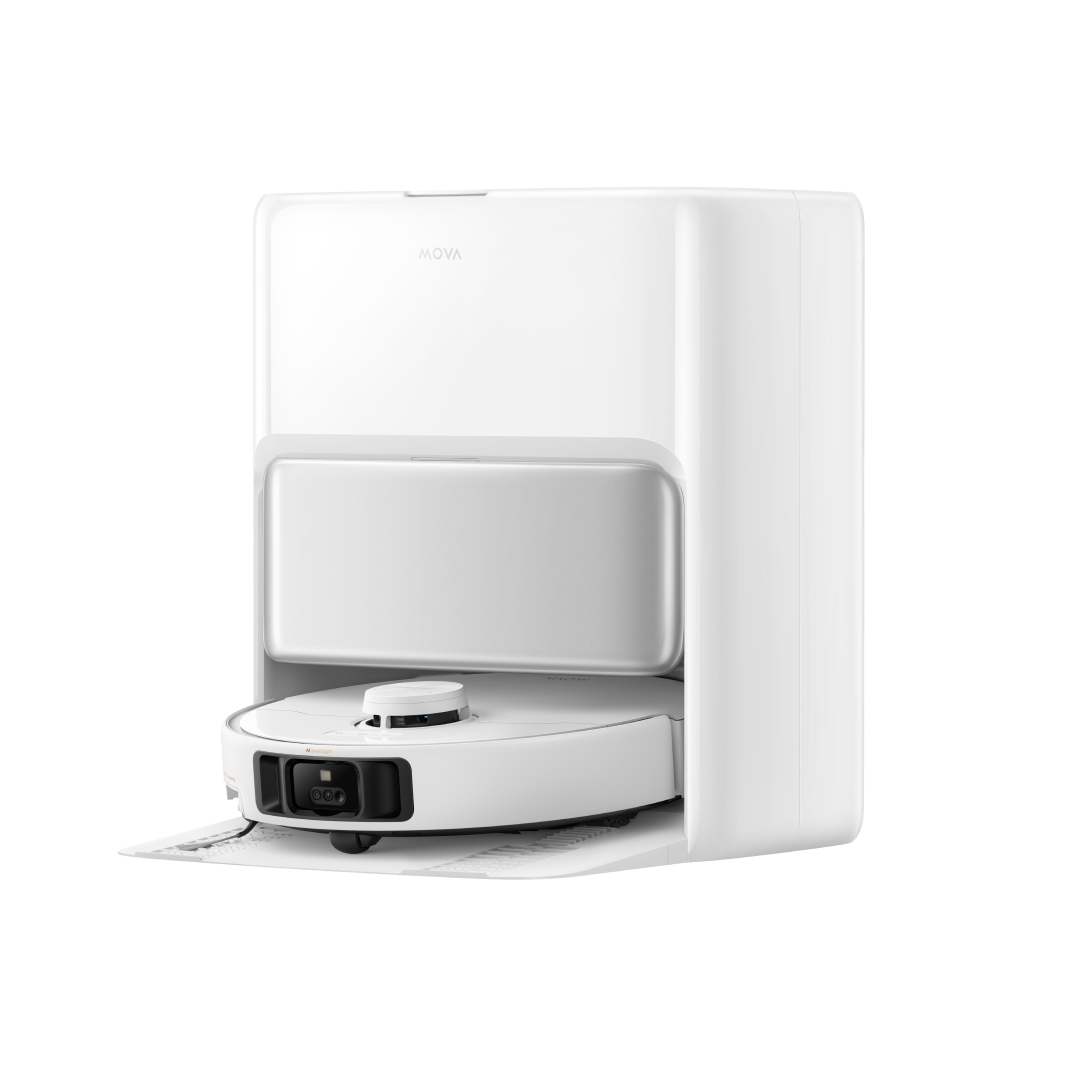
MOVA V50 Ultra Complete
Designed for complete floor care automation, the MOVA V50 Ultra Complete combines 24,000Pa suction power with advanced obstacle crossing, pressurized mopping, and a self-cleaning dock. Its seamless app integration allows users to customize cleaning schedules, adjust room settings, and manage cleaning tasks from anywhere, making it a great fit for larger homes with mixed flooring.
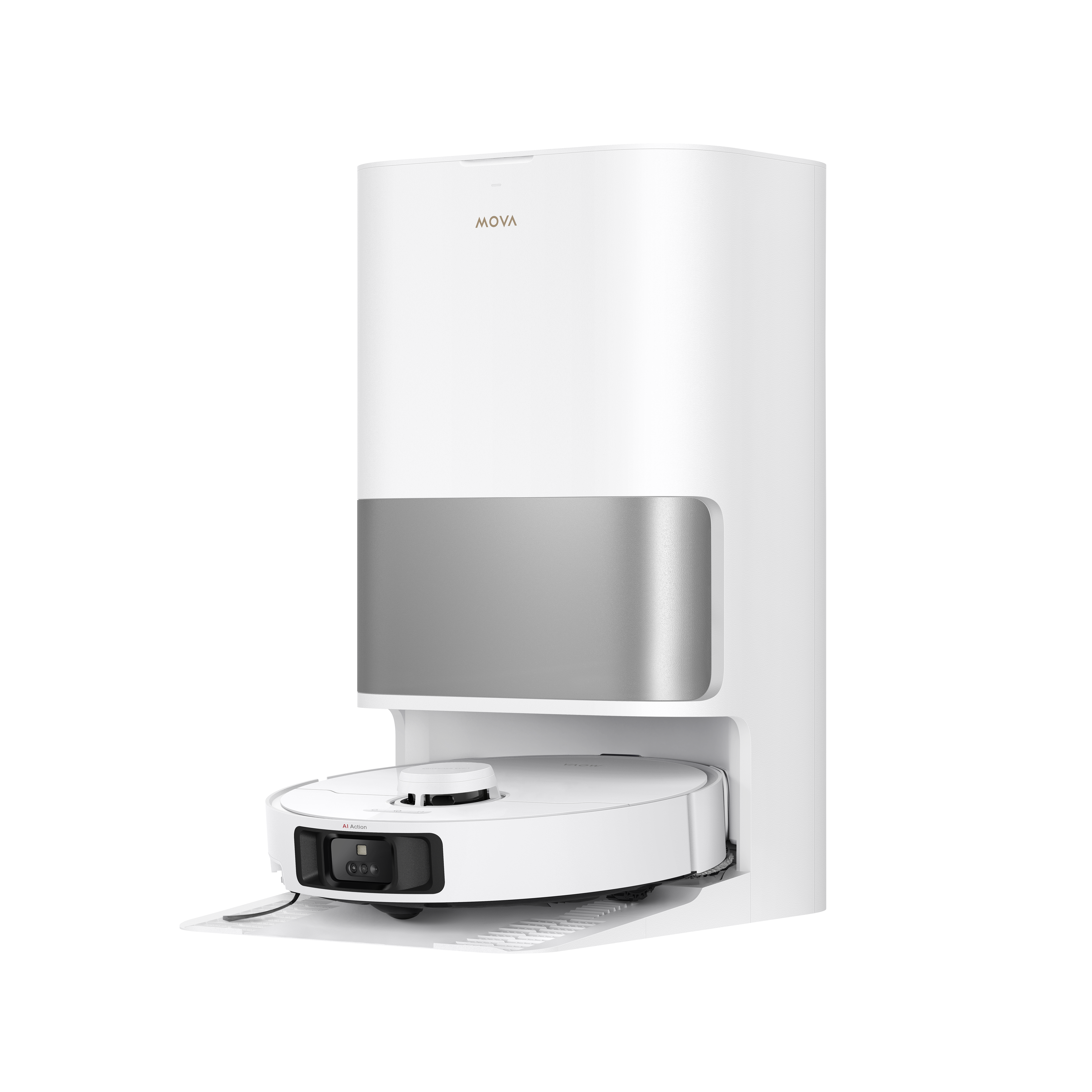
MOVA P10 Pro Ultra Gen2
As MOVA's next-generation flagship model, the P10 Pro Ultra Gen2 offers enhanced navigation, stronger 26,000Pa suction, and smarter automation features. The Triple Anti-Tangle system, hot water mop washing, and MaxiReach™ navigation work together to provide a more efficient and low-maintenance cleaning experience. Its reliable app connectivity ensures easy setup and ongoing performance improvements through firmware updates.
Tip: When comparing robot vacuums, don't focus solely on suction power. Reliable app support, stable Wi-Fi connectivity, OTA firmware updates, and advanced mapping capabilities often have a greater impact on everyday convenience and long-term satisfaction.
Conclusion
Connecting your robot vacuum to Wi-Fi is one of the simplest ways to unlock its full potential. From remote control and custom schedules to smart mapping and software updates, a connected robot vacuum can save time while making daily floor care more efficient.
Ready to upgrade your cleaning routine? Explore the full MOVA robot vacuum lineup and discover how smart connectivity can help you maintain a cleaner home with less effort. You can also download the MOVA app to take advantage of advanced features and personalized cleaning controls from day one.
FAQs
Can a robot vacuum work without Wi-Fi?
Yes. Most robot vacuums can perform basic cleaning tasks without a Wi-Fi connection by using the onboard controls. However, features such as room mapping, custom schedules, no-go zones, remote control, voice assistant integration, and firmware updates typically require a Wi-Fi connection and companion app.
Why won't my robot vacuum connect to 5GHz Wi-Fi?
Many robot vacuums are designed to connect only to 2.4GHz networks. The 2.4GHz band offers better range and stronger signal penetration through walls, making it more reliable for smart home devices. If your router combines 2.4GHz and 5GHz networks, you may need to temporarily separate the bands during setup.
Do I need internet access after setup?
For basic cleaning, the robot can continue operating without an internet connection. However, internet access is required for app-based controls, remote monitoring, cloud synchronization, voice assistant commands, and downloading firmware updates. Keeping the robot connected ensures you can access all smart features and performance improvements.
Will changing my router erase my maps?
Usually, no. Most modern robot vacuums store maps either locally on the device or within your account. However, when switching to a new router or Wi-Fi network, you'll typically need to reconnect the robot through the app. As a precaution, ensure your maps are synced to your account before changing network settings. If you're upgrading your router, check the manufacturer's instructions to avoid losing customized room labels, schedules, or cleaning preferences.